Many Windows users depend on the operating system’s built-in protections to keep their devices safe. I had mostly left my Windows Security settings at their defaults until I came across a Microsoft report describing a recent threat: malware disguised as legitimate, popular apps was attempting to quietly weaken Windows security by turning protections off.
That prompted me to enable Tamper Protection and take a fresh look at other Windows 11 security options that are easy to miss. Here are the ones I think are most useful. They’re all simple toggles found in Settings, so there’s no need to edit the Registry.
Tamper Protection
Keep malware from turning off your defenses
Some malware doesn’t immediately take over a PC. Instead, it works more slowly by disabling the security features that are meant to stop it. Once those protections are gone, the attacker can do serious damage, including changing files or stealing data.
Tamper Protection helps prevent that. The feature stops apps and processes from changing or disabling security settings, even if the malicious software has administrator privileges. It also blocks suspicious Registry changes. To turn it on, go to Settings > Privacy & security > Windows Security > Virus & threat protection > Manage settings, then switch Tamper Protection on.
Controlled Folder Access
Add another layer of protection to important files
If you store sensitive material such as medical records or financial documents on your PC, Controlled Folder Access is worth enabling.
Ransomware can lock you out of important documents, photos, and work files. A recent Pew Research Center survey found that 10% of respondents said they had been locked out of their files or computers until they paid a ransom.
Attackers often use seemingly harmless apps to block access to your files, and you may not realize what has happened until it is too late.
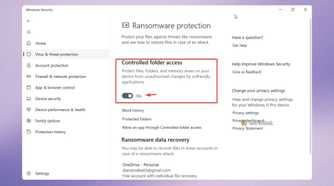
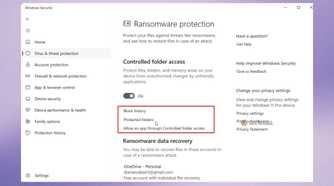
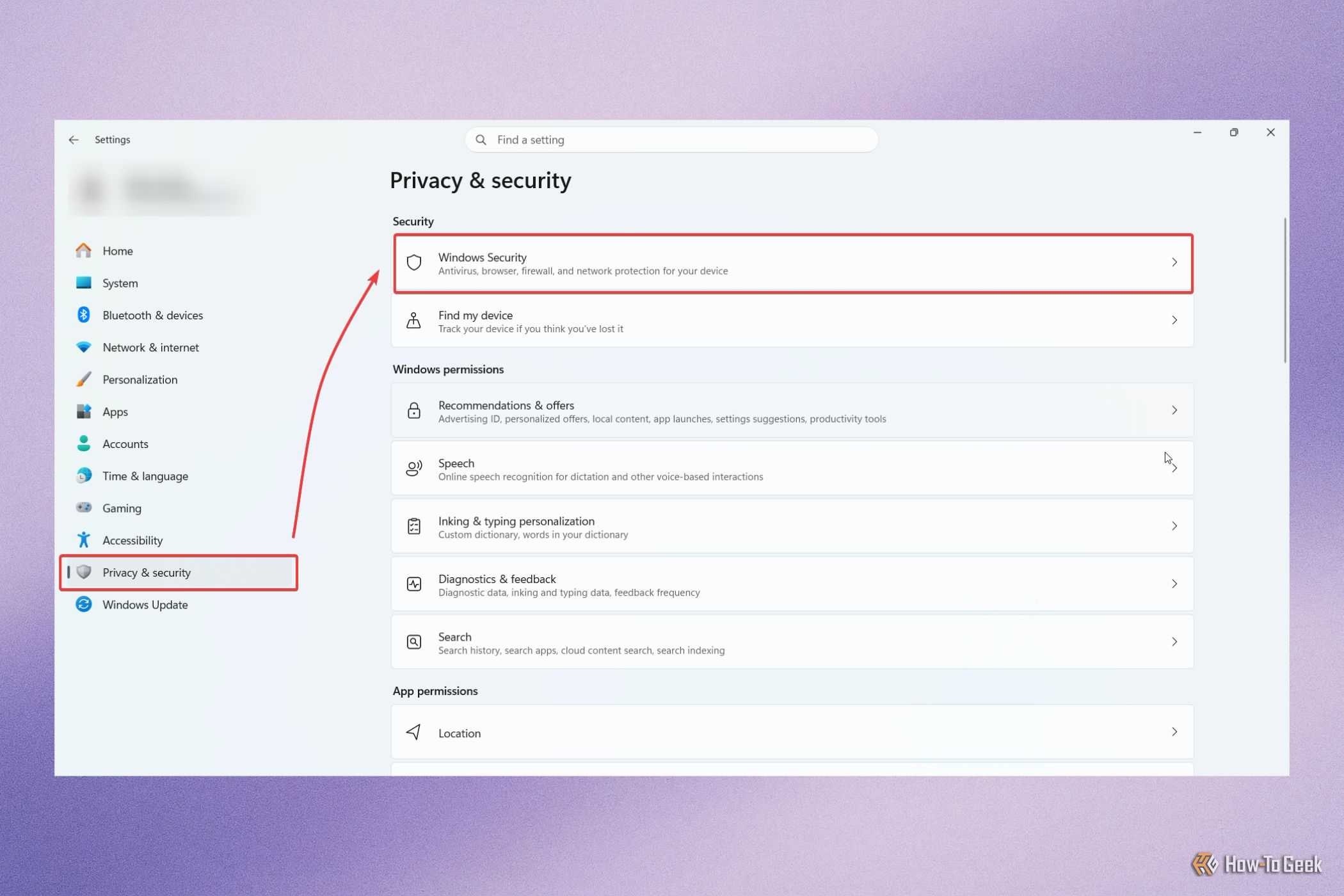
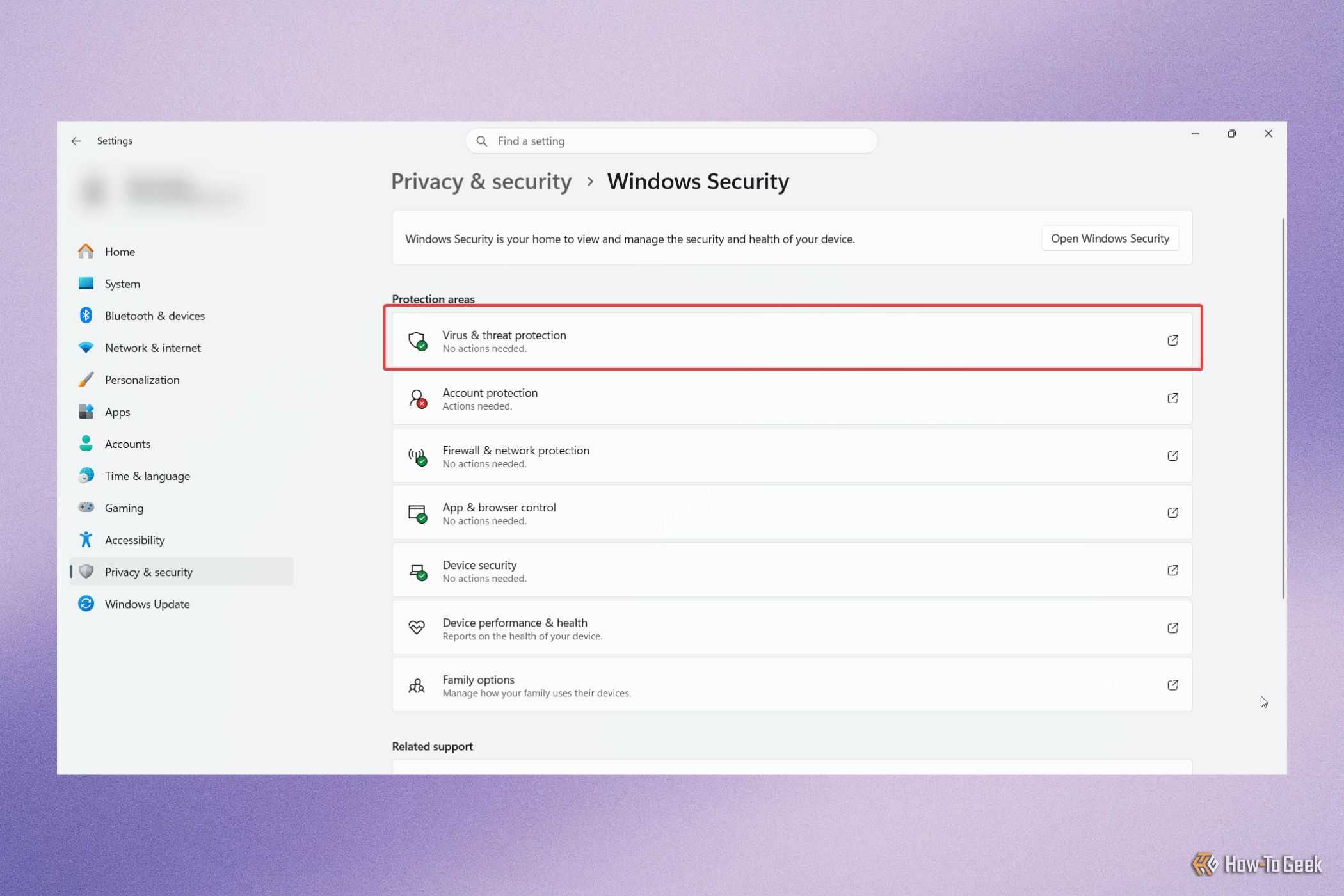
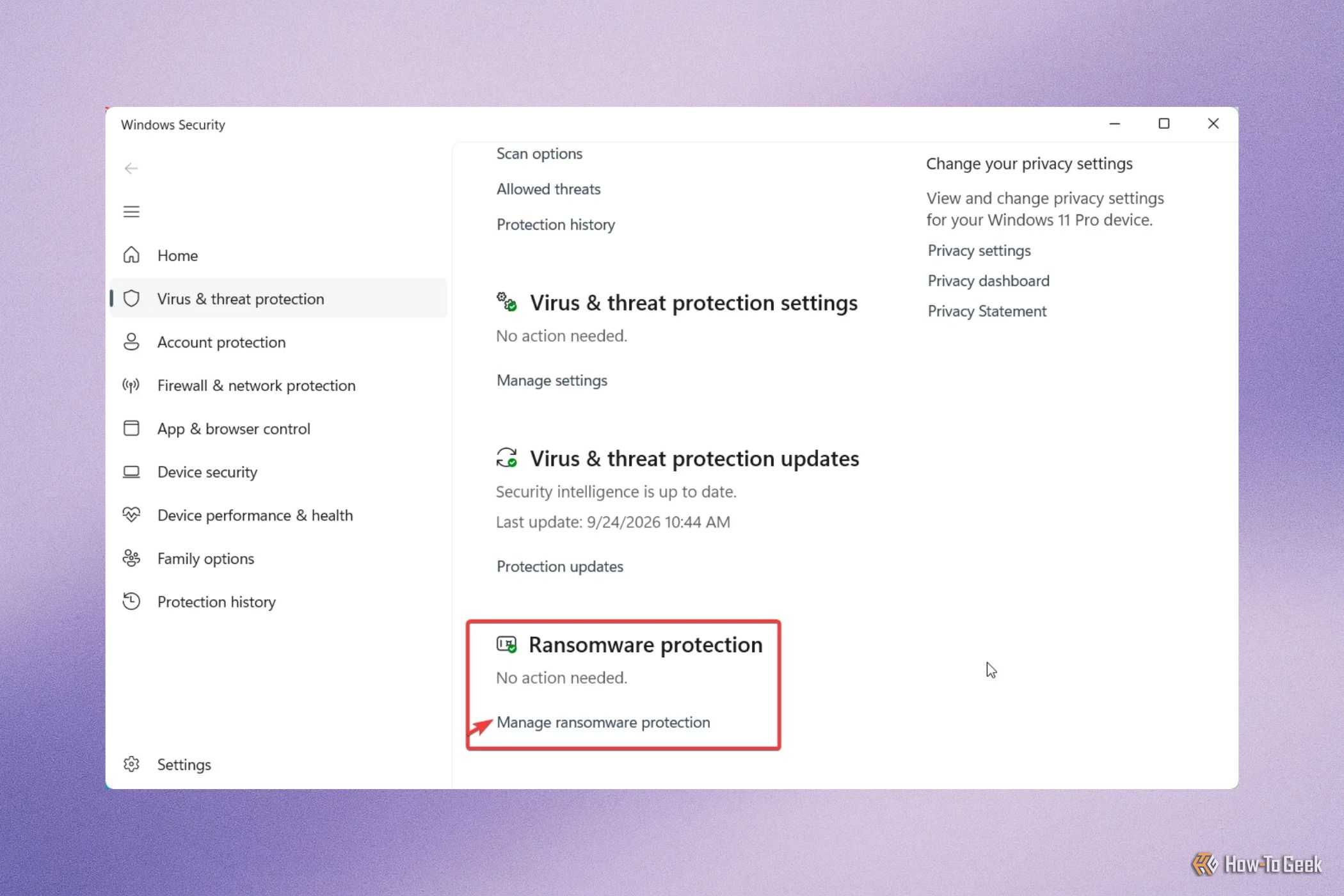
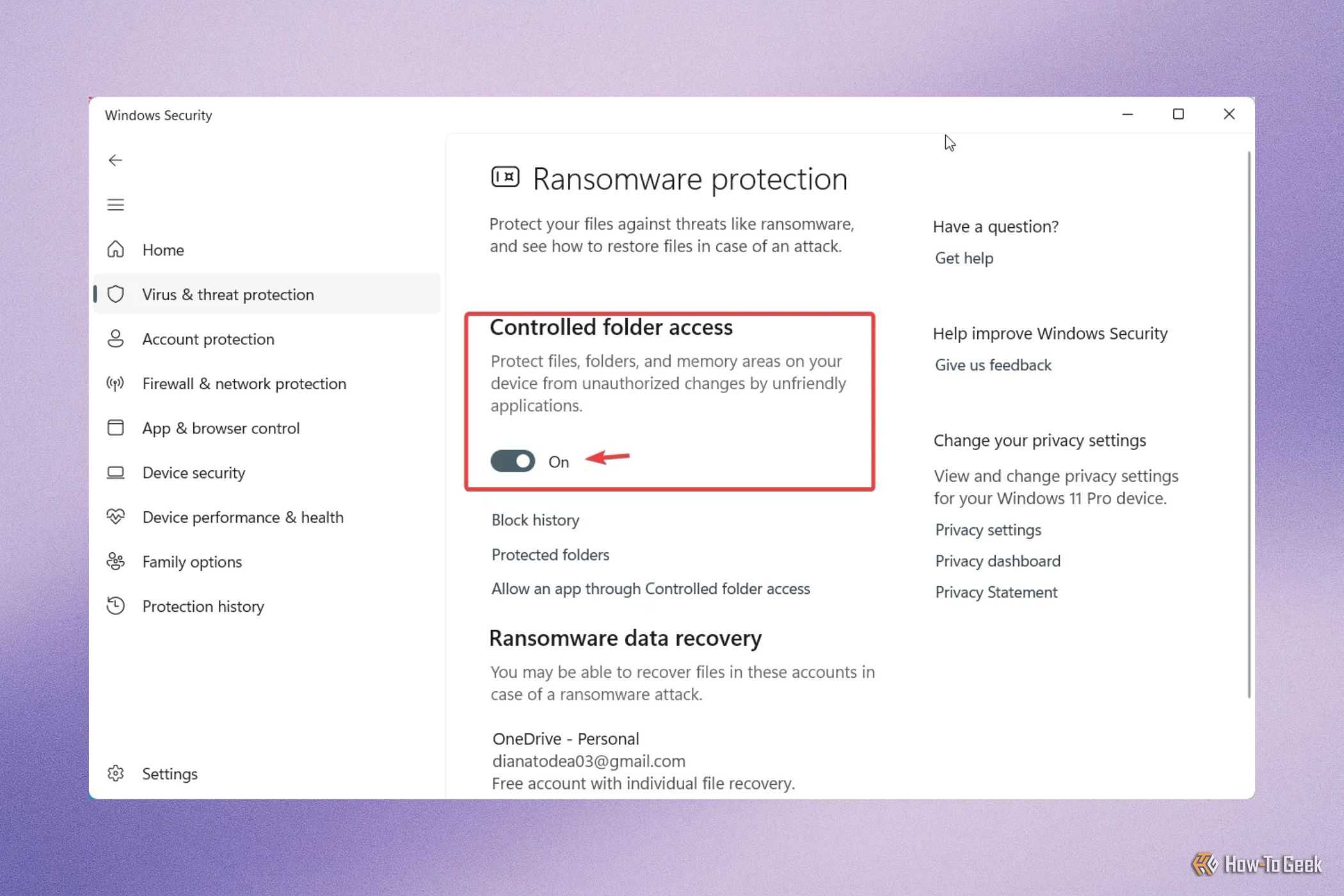
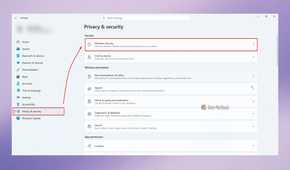
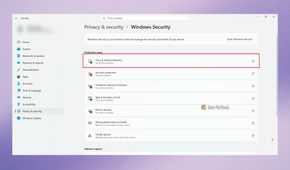
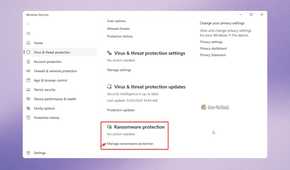
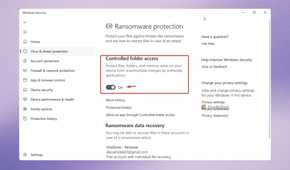
Controlled Folder Access prevents apps on your computer from making changes to protected folders. To enable it, go to Settings > Privacy & security > Windows Security > Virus & threat protection > Manage ransomware protection, then switch Controlled folder access on.
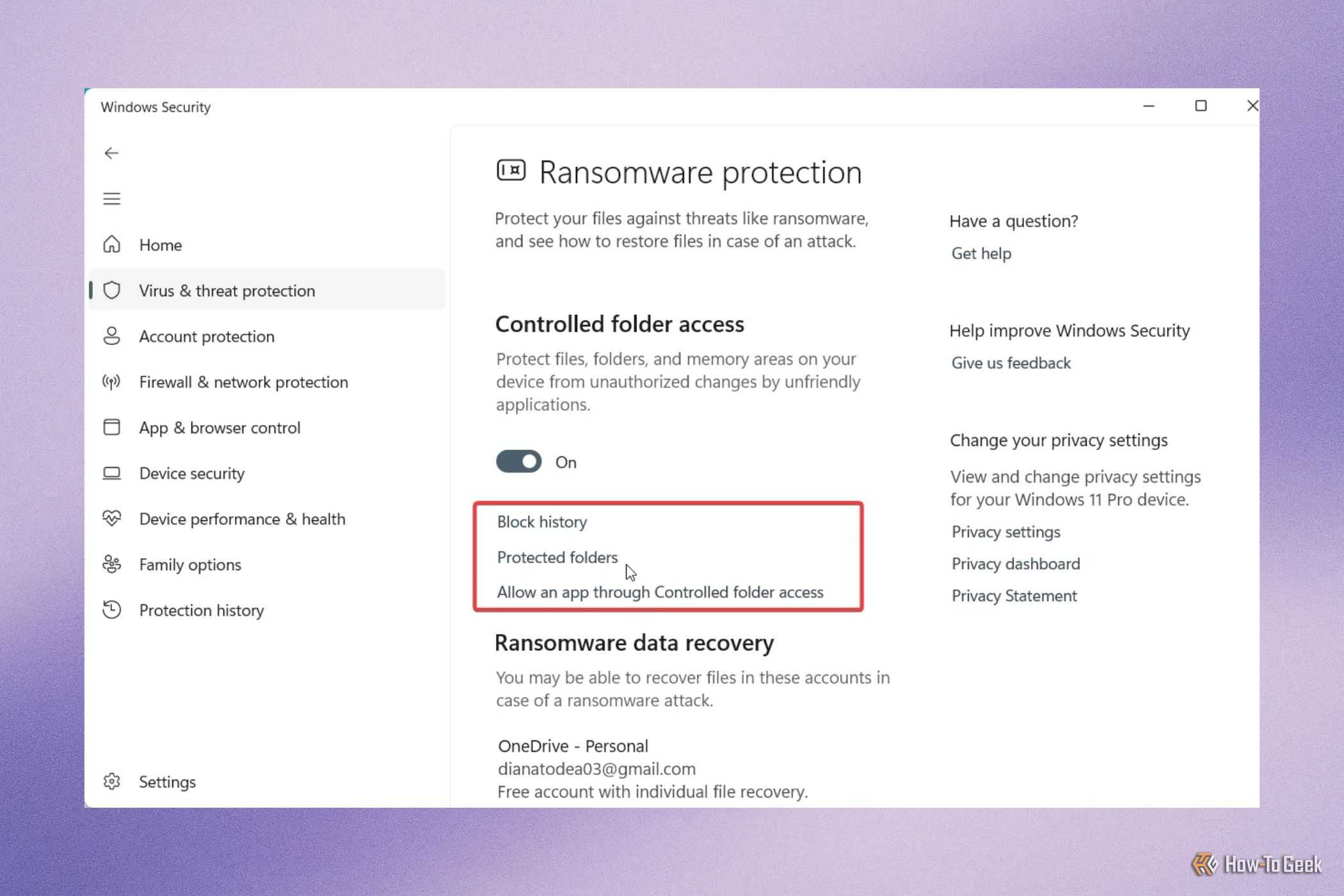
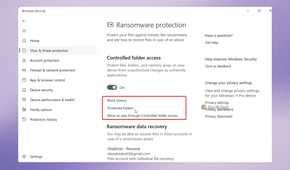
After turning it on, you can choose which folders to protect and whitelist apps that are allowed to make changes. From then on, if an untrusted app tries to alter a file in one of those folders, Windows will block the action and notify you.
Smart App Control
Block suspicious apps before they start
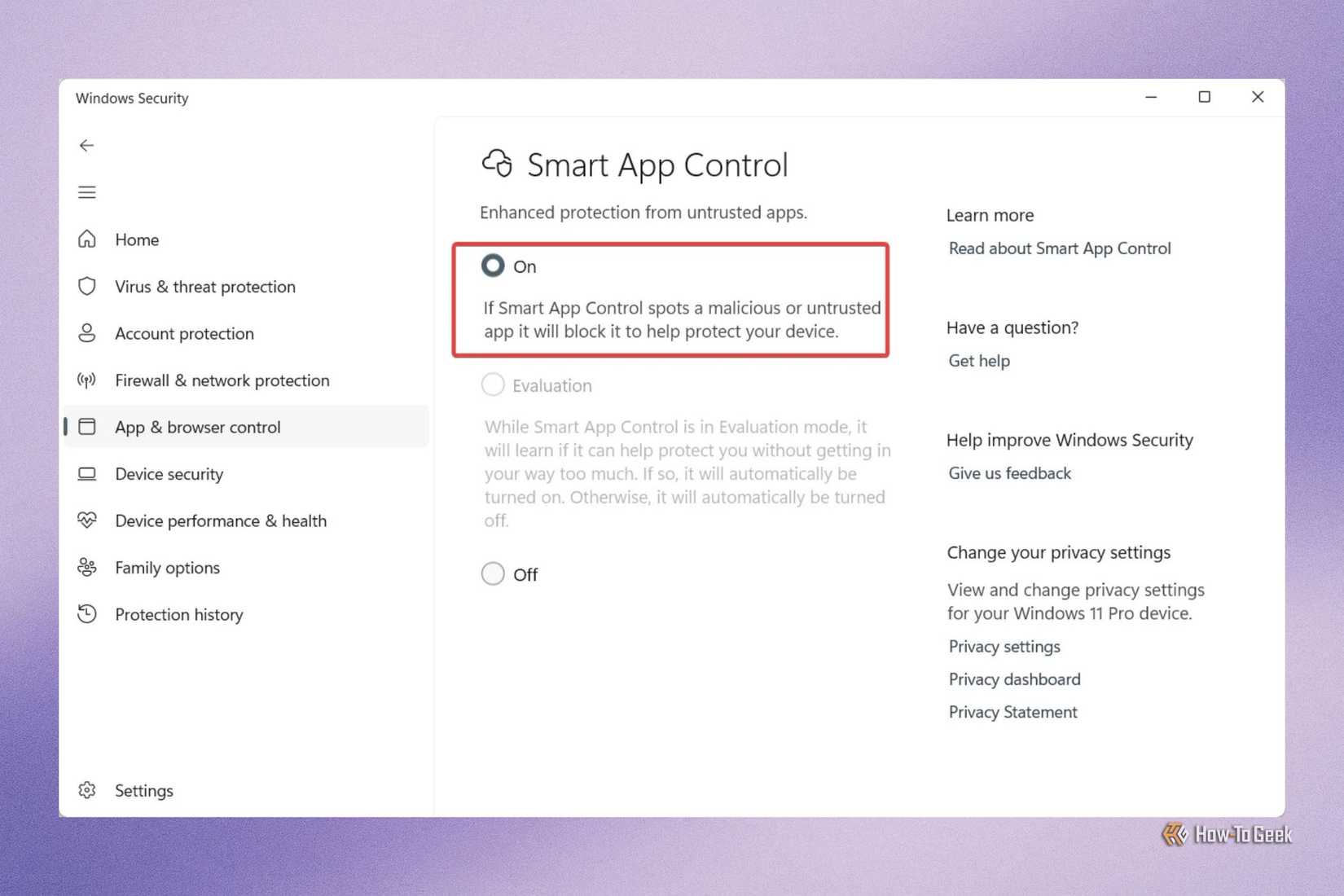
For anyone who likes trying new apps, Smart App Control can be appealing because it helps stop potentially harmful software before it runs. It can also be fairly strict. Unlike User Account Control, which asks for permission before launching apps, Smart App Control does not prompt first.
It relies on cloud-based application intelligence and digital signature checks to determine whether an app is safe. If software is known to be malicious or fails Microsoft’s trust requirements, it will be blocked.
There are no exceptions for Smart App Control. That can be a problem for developers or power users who want to run their own apps. Microsoft recommends signing custom apps with a valid certificate; otherwise, Smart App Control has to be turned off completely.
To enable it, go to Settings > Windows Security > App & Browser Control > Smart App Control > Smart App Control Settings, then turn it on. If that feels too restrictive, another option is to show file extensions in Windows and avoid opening files that look suspicious.
Dynamic Lock
Keep your PC from sitting unguarded
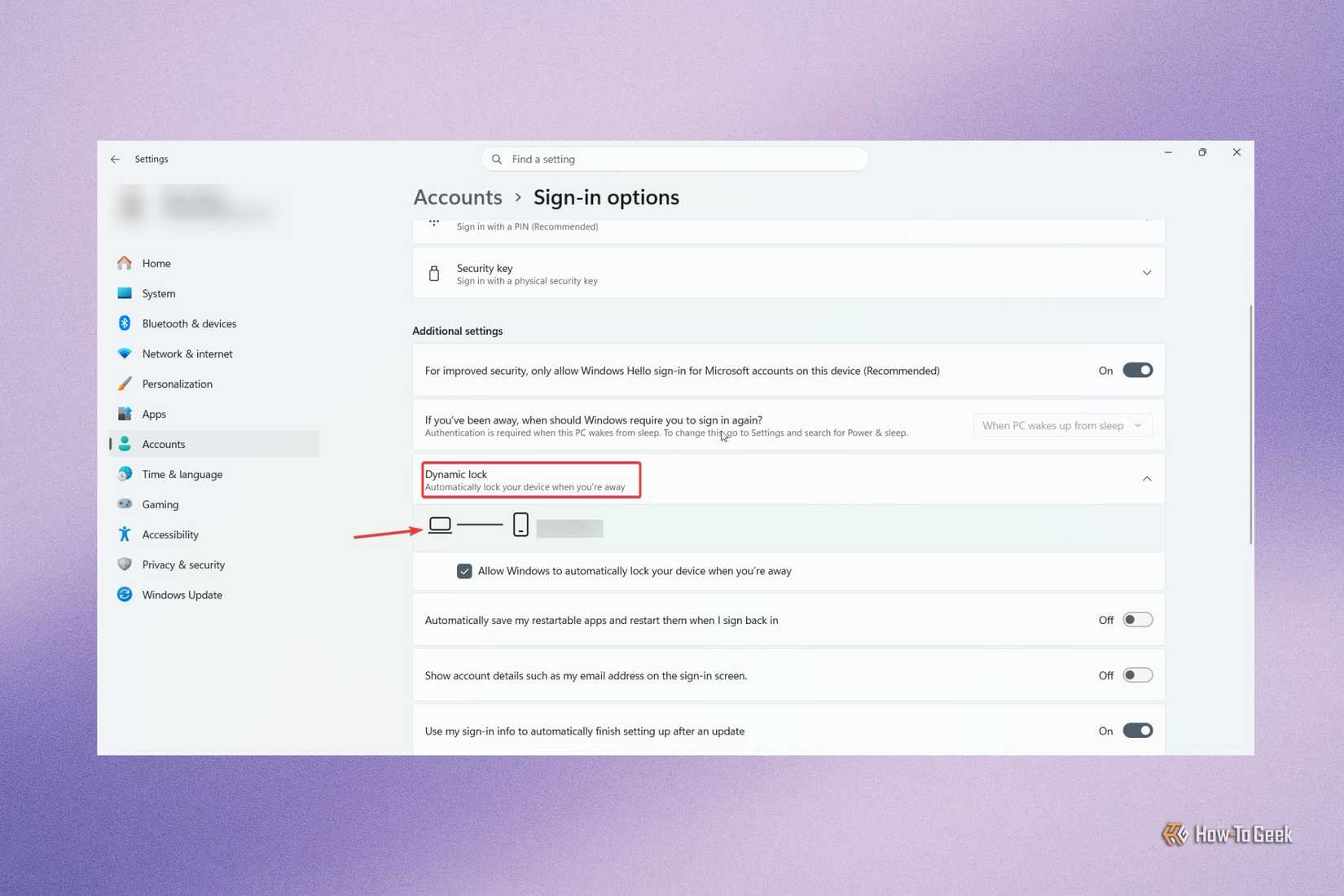
Using a laptop in a cafe, library, or other public place can be convenient, but if you often walk away from your device, Dynamic Lock can help protect your privacy.
It does require pairing your phone, so it is a little less convenient. Still, once the devices are connected and Dynamic Lock is enabled, your PC will notice when your phone is no longer nearby. That means if you step away with your phone in your pocket, you do not have to remember to lock the computer manually every time.
This is not meant to suggest that someone is always watching your screen, but the risk of leaving a device open does exist. It is a simple extra safeguard that is already built into Windows.
To set it up:
- Go to Settings.
- Select Bluetooth & Devices, then Add a Device.
- Find your phone and pair it.
- After the devices are connected, return to the main Settings menu.
- Go to Accounts > Sign-in options.
- Scroll down to Dynamic lock.
- Check Allow Windows to automatically lock your device when you're away.
Windows Security does more than scan for malware
The built-in Windows Security tools in Windows 11 do more than scan for malware. They can help defend against ransomware and support specific protections for situations such as leaving your PC unattended. The feature set is surprisingly capable and flexible, which is one reason many users choose to rely on Windows’ built-in options instead of third-party antivirus software.
More from Digilifetrends
Airline Extra Charges and Ways to Steer Clear of Them
Airfares have climbed well beyond what they once were, and prices keep edging higher. In recent years, the extra charges added on top of the ticket itself have become almost a…
1 min read · Updated 2026-10-12A homeowner scores an affordable heat pump water heater, and experts say it can cover summer hot water needs
A homeowner trying to stop relying on oil for warm-weather hot water turned to Reddit to ask whether a heat pump water heater could take over that job in an Energy Kinetics EK1…
3 min read · Updated 2026-10-02