Samsung once raised hopes with its Galaxy Upcycling idea, introduced years ago, which promised to give old Galaxy phones new lives as Linux computers, retro gaming machines, and smart home tools. That vision never fully arrived, and the later Galaxy Upcycling at Home effort was narrowed down to sound and light detection through SmartThings. It offered far less than the original pitch, and I can no longer even install the app on my Galaxy S21 FE. Still, there are other ways to make an older phone genuinely useful, and by combining SmartThings, AlfredCamera, and Home Assistant, I turned mine into a smart home hub worth about $200.
Using the phone’s screen as a control panel
A dedicated display for smart devices
I had wanted a smart display for managing connected gadgets, but rather than buying new hardware, I chose to reuse an old phone. My S21 FE already has the right hardware for the job, and SmartThings supplies the controls.
After installing SmartThings on the spare phone and signing in with the Samsung account tied to my home, I could access every compatible device connected to that account. From there, I could keep often-used lights and routines in one place, sort devices by room, and open individual controls to change brightness or manage a supported TV. I could also create a manually run routine that handles multiple devices with a single tap.
This setup is handy because I do not have to pass my main phone around just so someone else can adjust the lights or other smart devices. Family members can use the extra Galaxy sitting around the house to control everything instead. The trade-off is that the phone needs to stay charged if you want to rely on it regularly. It also helps to keep SmartThings installed on your primary phone so you still have access if the spare device is unavailable. The extra handset simply gives you another dedicated screen for the home.
Using the camera and microphone to watch a dog
AlfredCamera handles video and audio monitoring
The screen-based setup only uses the display, but the phone has other useful hardware as well. Since I often have to leave my dog inside for long stretches, I had been thinking about a pet monitor. Before buying another device, I decided to see whether the Galaxy’s camera and microphone could handle both video and audio monitoring.
For that, I used AlfredCamera, which turns one old phone into the camera and another everyday phone into the viewer. The app is installed on both devices, and the two are paired through its mobile setup process. The viewer app is available on both Android and iOS, so the phones do not need to run the same operating system.
Its basic features include live video, motion alerts, and two-way audio. That lets me check what the dog is doing and speak through the old phone. If you want to get more from the setup, you can also enable options such as sound detection. After setting a detection range, the app can record activity and send an alert when it hears sound within that range.
Using the light sensor to automate lights
Home Assistant exposes the phone’s readings
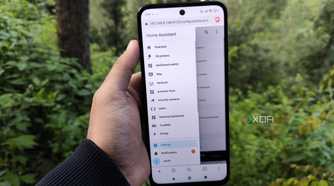

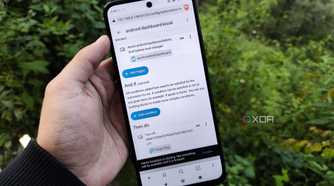
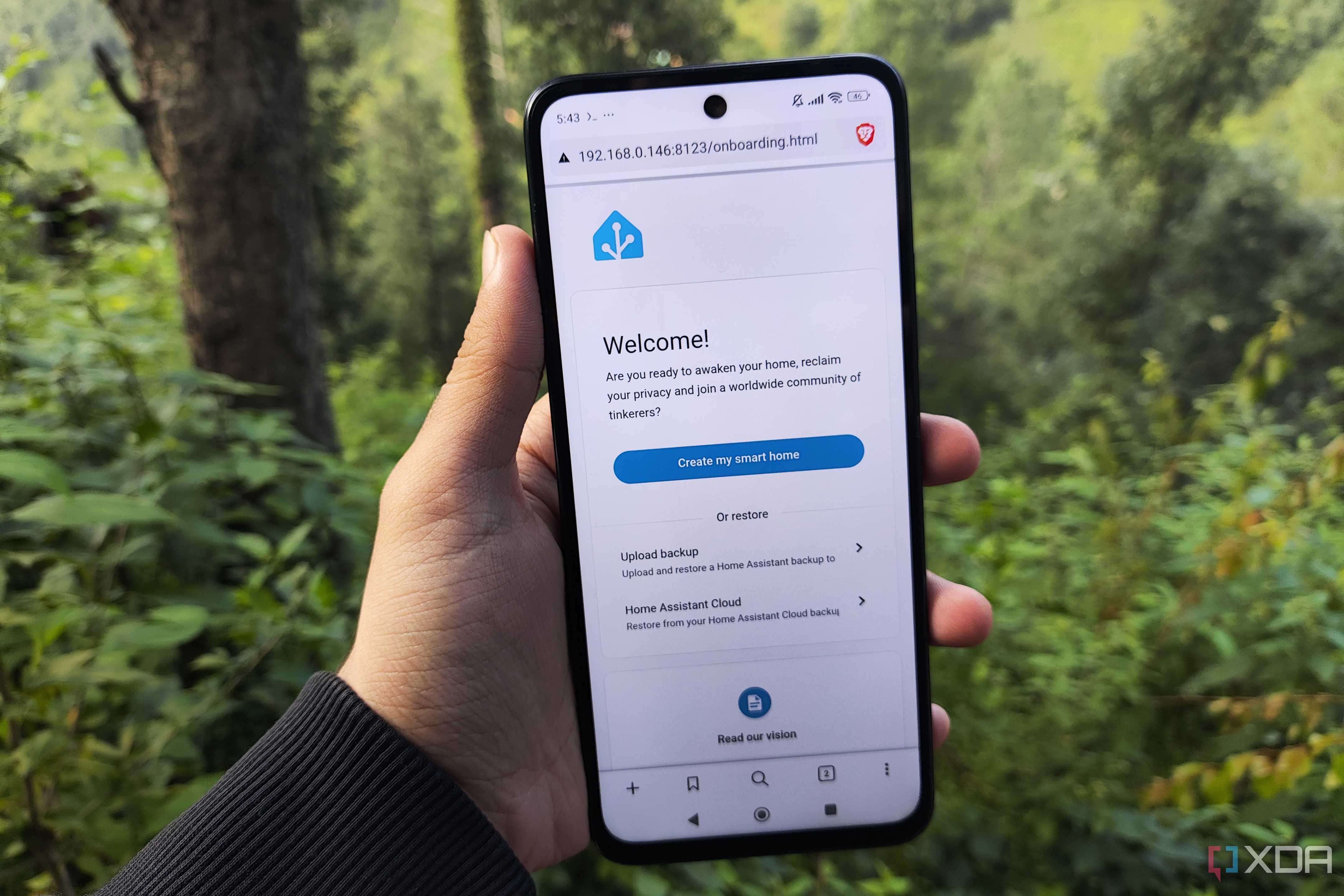
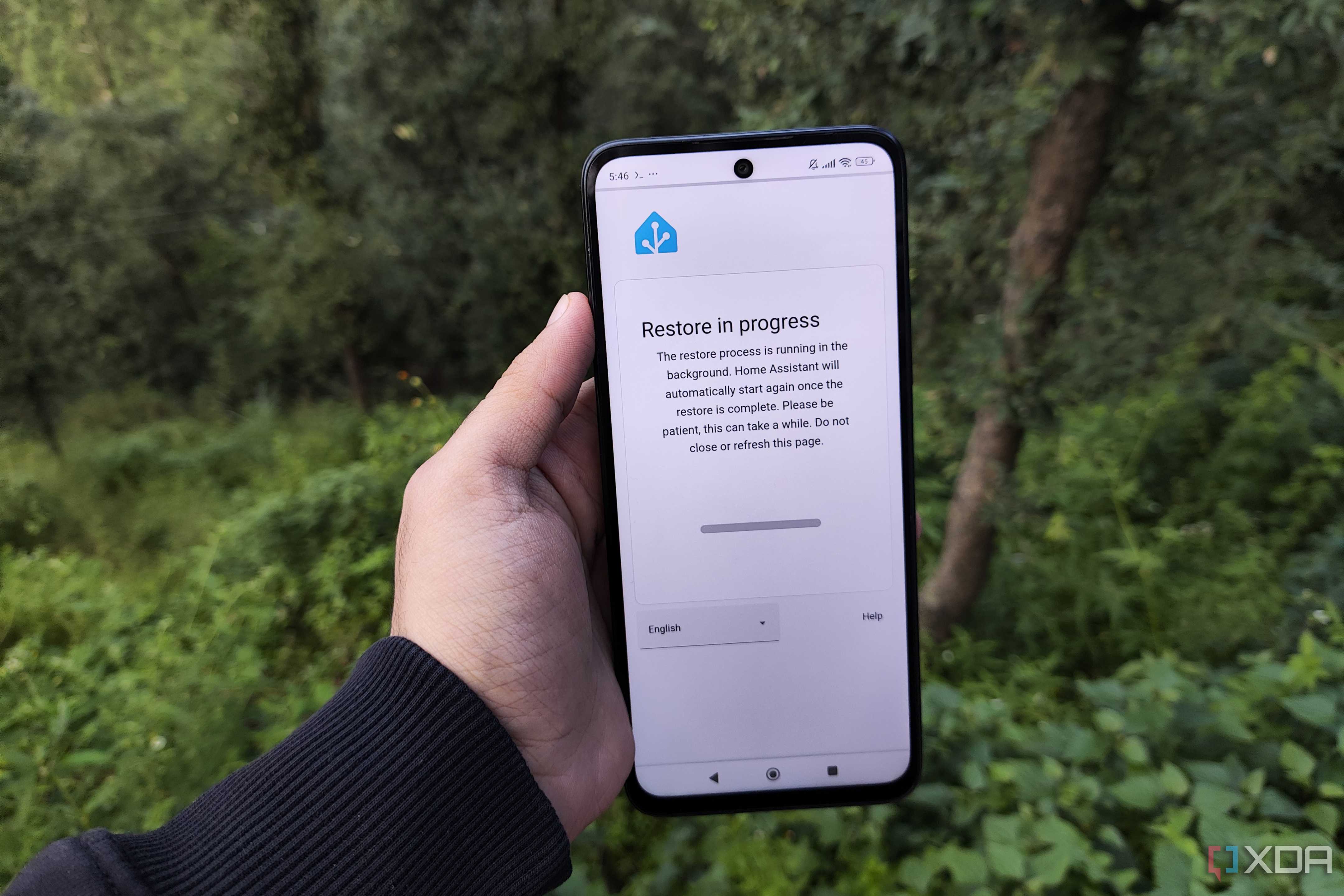
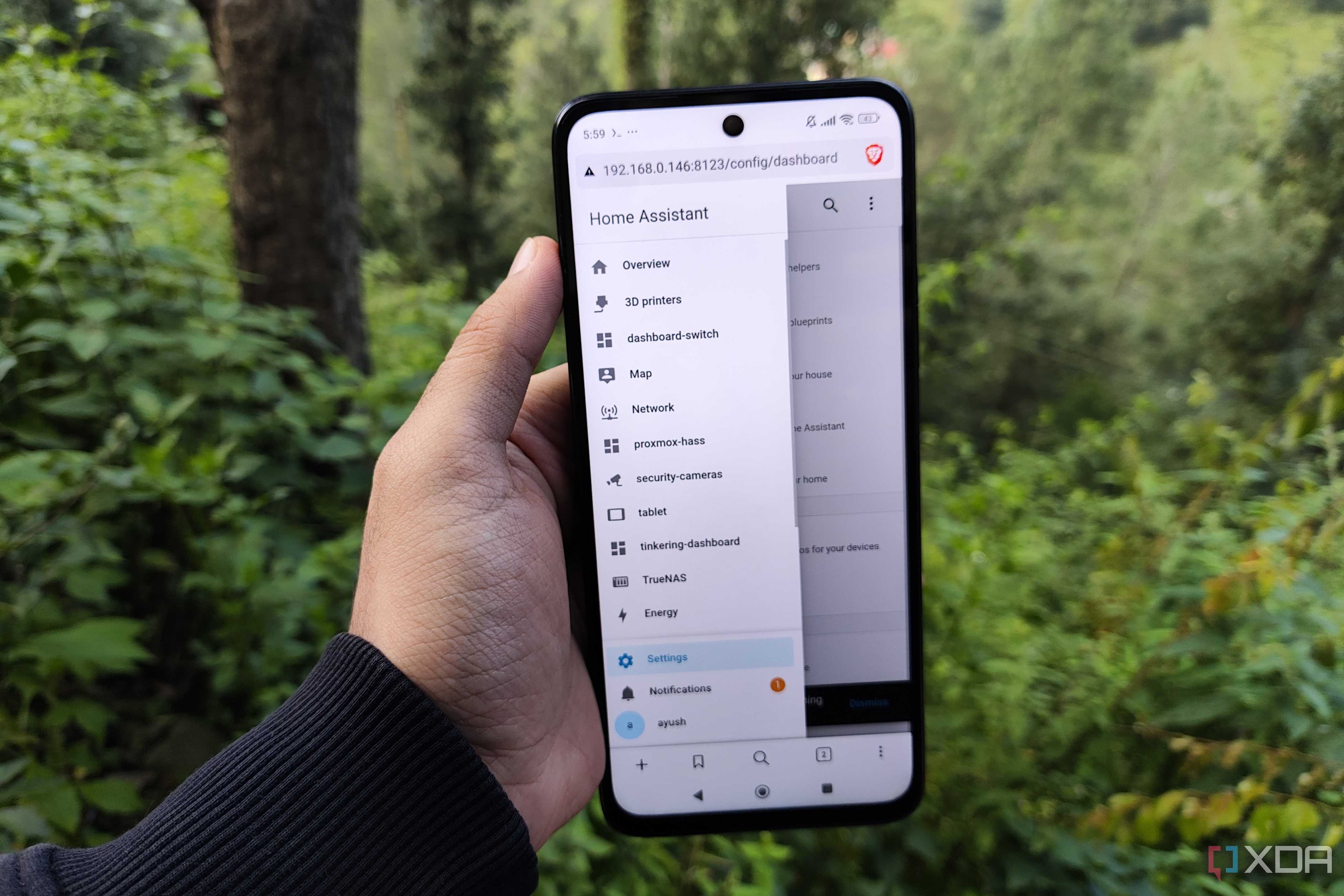
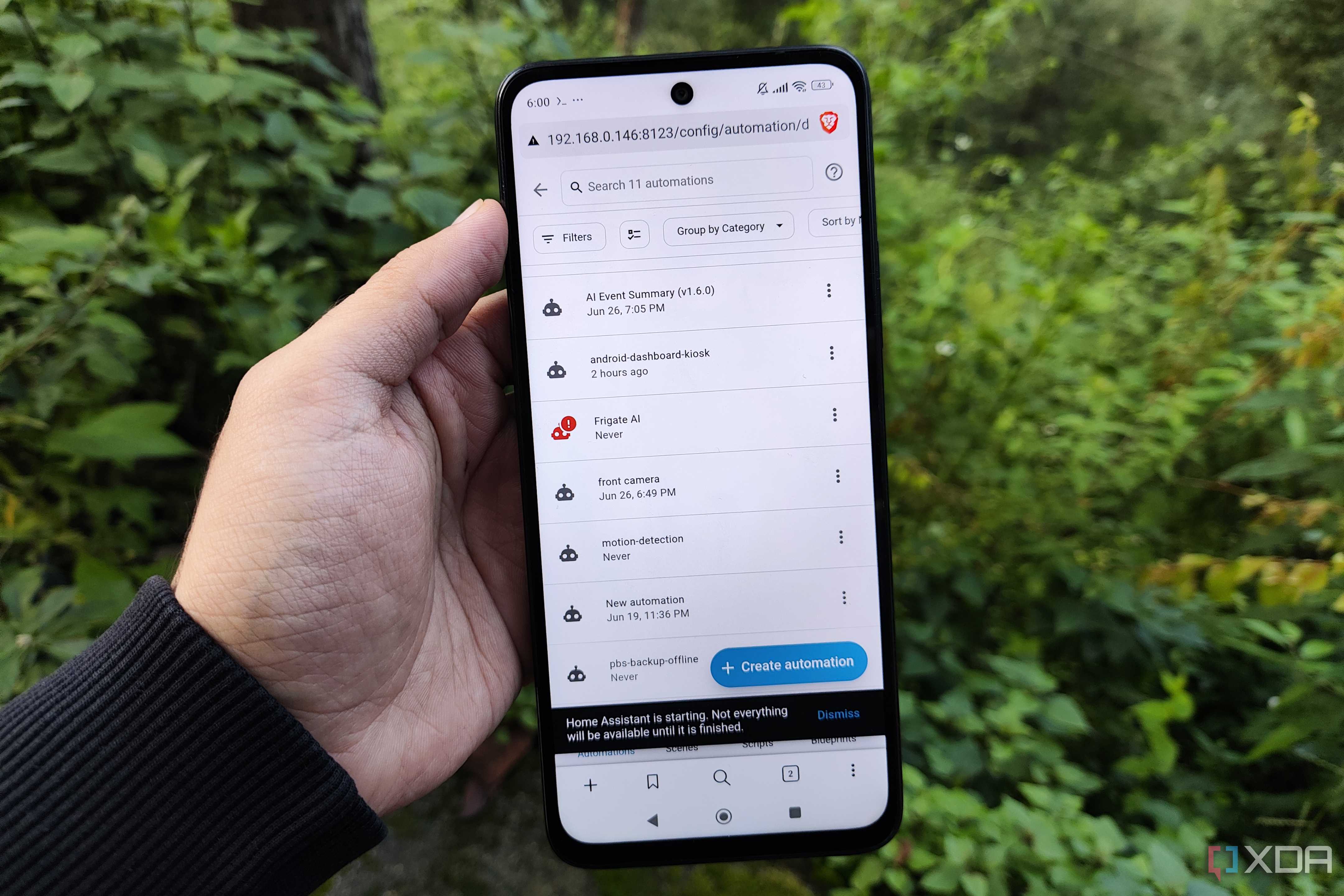
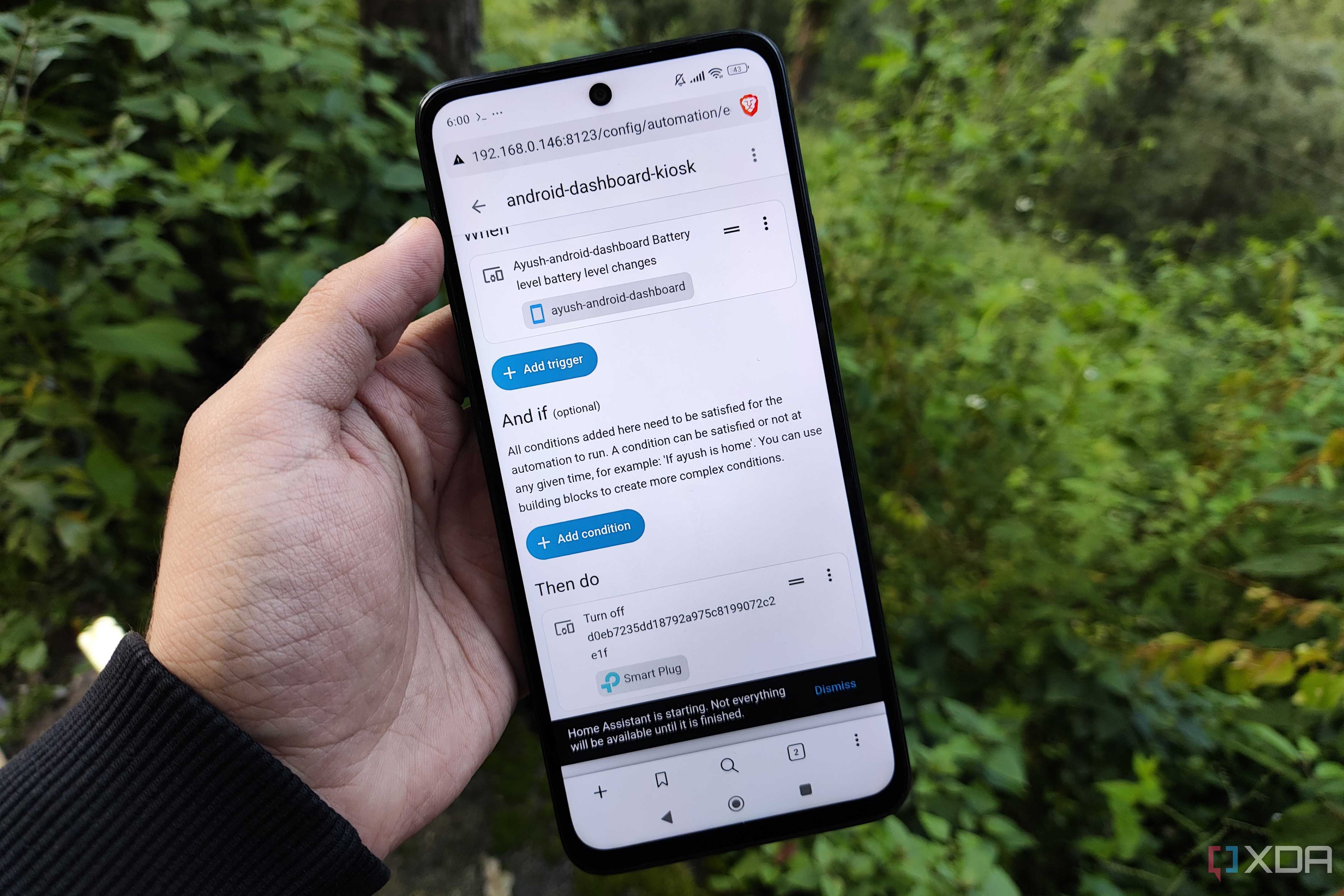

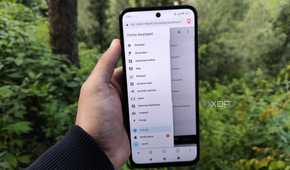
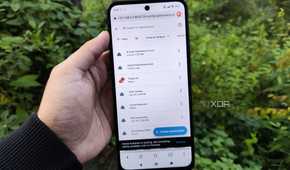
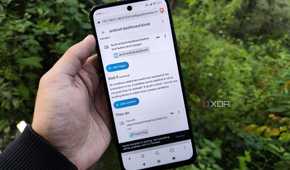
Phones already rely on ambient light sensors to adjust screen brightness. With the Home Assistant Companion app for Android, the phone can also expose its illuminance readings to Home Assistant, where those values can be used in automations. This does require a running Home Assistant server, with the phone serving as both a sensor and a control screen.
Once the Companion app is connected to the server, you can enable the Light sensor through Settings > Companion App > Manage Sensors. Supported sensors then show up as entities in Home Assistant. From there, the phone’s readings can be used in an automation that switches on a smart lamp when a room gets dark enough.
That matters because a room does not always darken at the same pace. Cloud cover can make lights necessary earlier than expected, while a brightness-based automation reacts to real conditions instead of following a fixed schedule. You can also build an automation that turns the lights off once there is enough daylight.
The readings do not update instantly. Home Assistant says the normal interval is 15 minutes, with faster settings aiming for one-minute updates either continuously or while charging. That delay is something to keep in mind when testing how well a phone can stand in for a dedicated light sensor.
Old phones still have plenty to offer
Phones combine some of the most useful hardware in one device, including sensors, memory, and storage that would cost quite a bit if bought separately. So instead of leaving old phones unused in a drawer, it makes sense to turn them into something more practical. Beyond smart home use, an older handset could become a media server running Jellyfin, a Tailscale node, or simply a compact device for lighter apps. There are plenty of ways to put one back to work.
More from Digilifetrends
Airline Extra Charges and Ways to Steer Clear of Them
Airfares have climbed well beyond what they once were, and prices keep edging higher. In recent years, the extra charges added on top of the ticket itself have become almost a…
1 min read · Updated 2026-10-12A homeowner scores an affordable heat pump water heater, and experts say it can cover summer hot water needs
A homeowner trying to stop relying on oil for warm-weather hot water turned to Reddit to ask whether a heat pump water heater could take over that job in an Energy Kinetics EK1…
3 min read · Updated 2026-10-02