Long drives in a rental car or older vehicle can quickly turn into a battery-draining experience when your phone is doing all the navigation work from a dashboard mount.
Even now, Android Auto is far from universal. Plenty of pre-2018 cars are still on the road, and many rental fleets only offer basic trim levels.
That can make airport rentals a gamble, especially when you ask for a car with Android Auto and get little more than a blank stare. In practice, you often have no idea what you'll be driving when you land in a new city.
For that reason, a vent mount usually travels with me. But I also know the USB port in many cars won't provide enough power to keep either a Google Pixel or an iPhone charging properly.
Google Maps can easily draw more power than a small 5W USB-A port can deliver because it is constantly handling GPS, downloading map data, and keeping a bright OLED display active.
Heat adds another problem. In hot weather, especially in places like Las Vegas, the sun beating through the windshield can cause charging to slow down or stop altogether.
Keeping it simple
Only show the information you actually need
The first question is whether you really need a full 3D map running on your phone when you're cruising along miles of straight highway. For me, the answer is no.
It can be distracting, and thankfully it is no longer necessary to keep the screen fully awake just to know what is happening ahead.
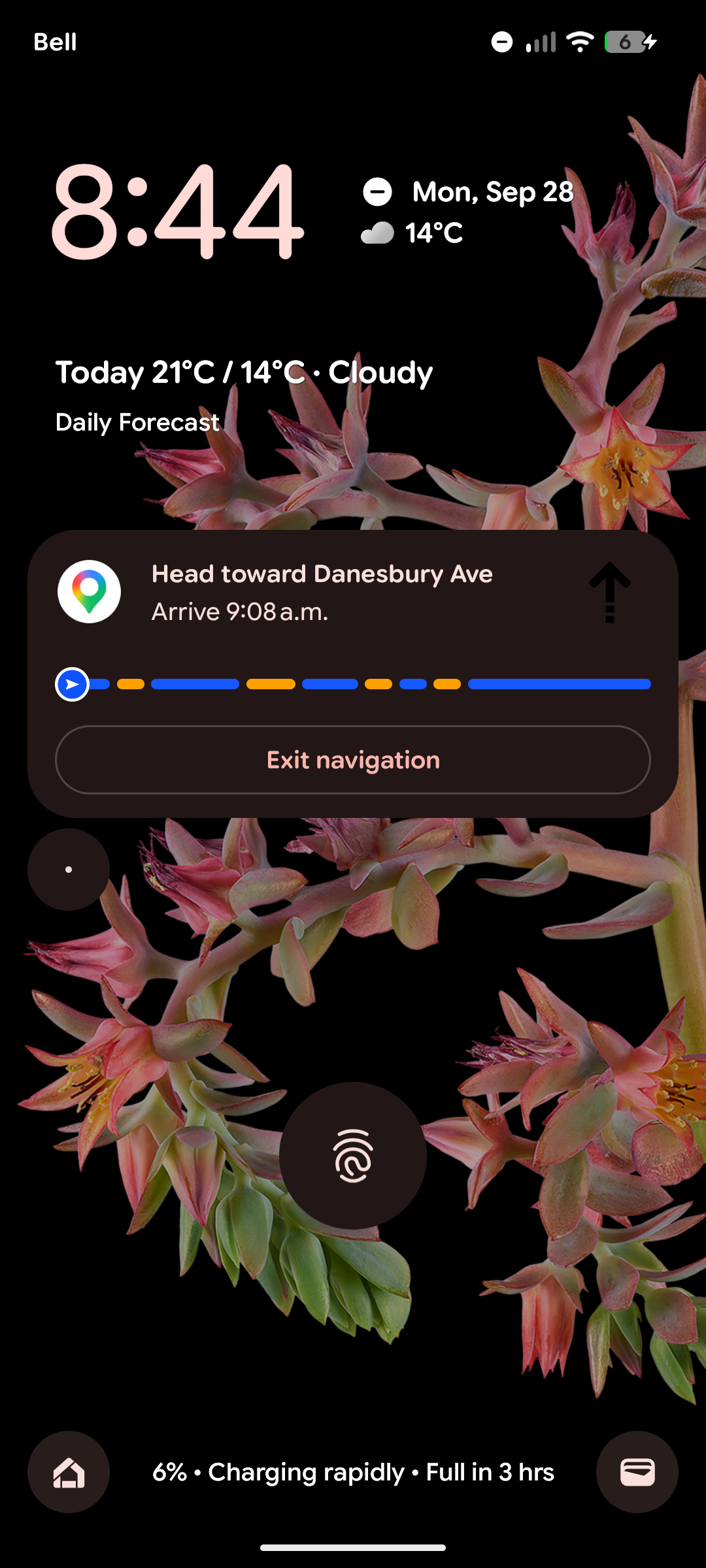
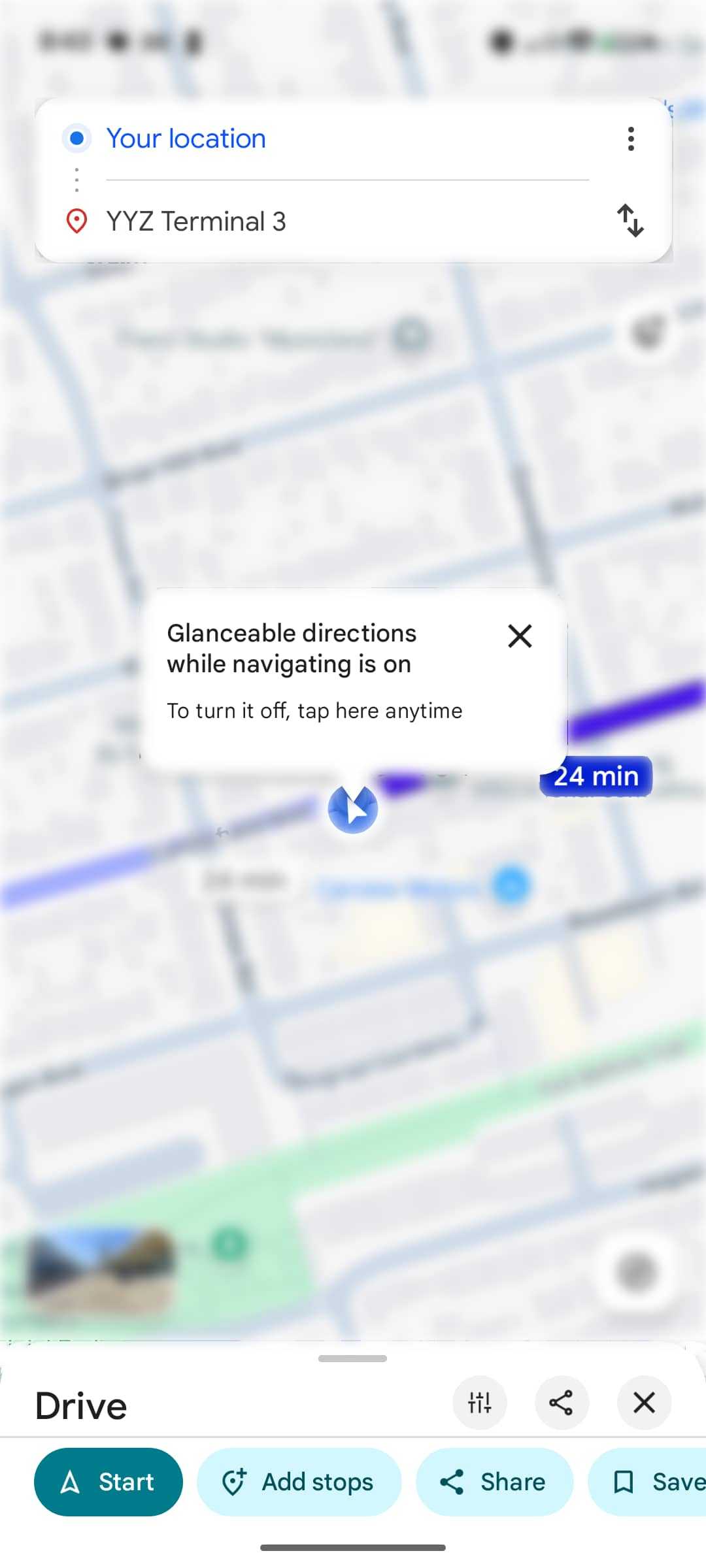
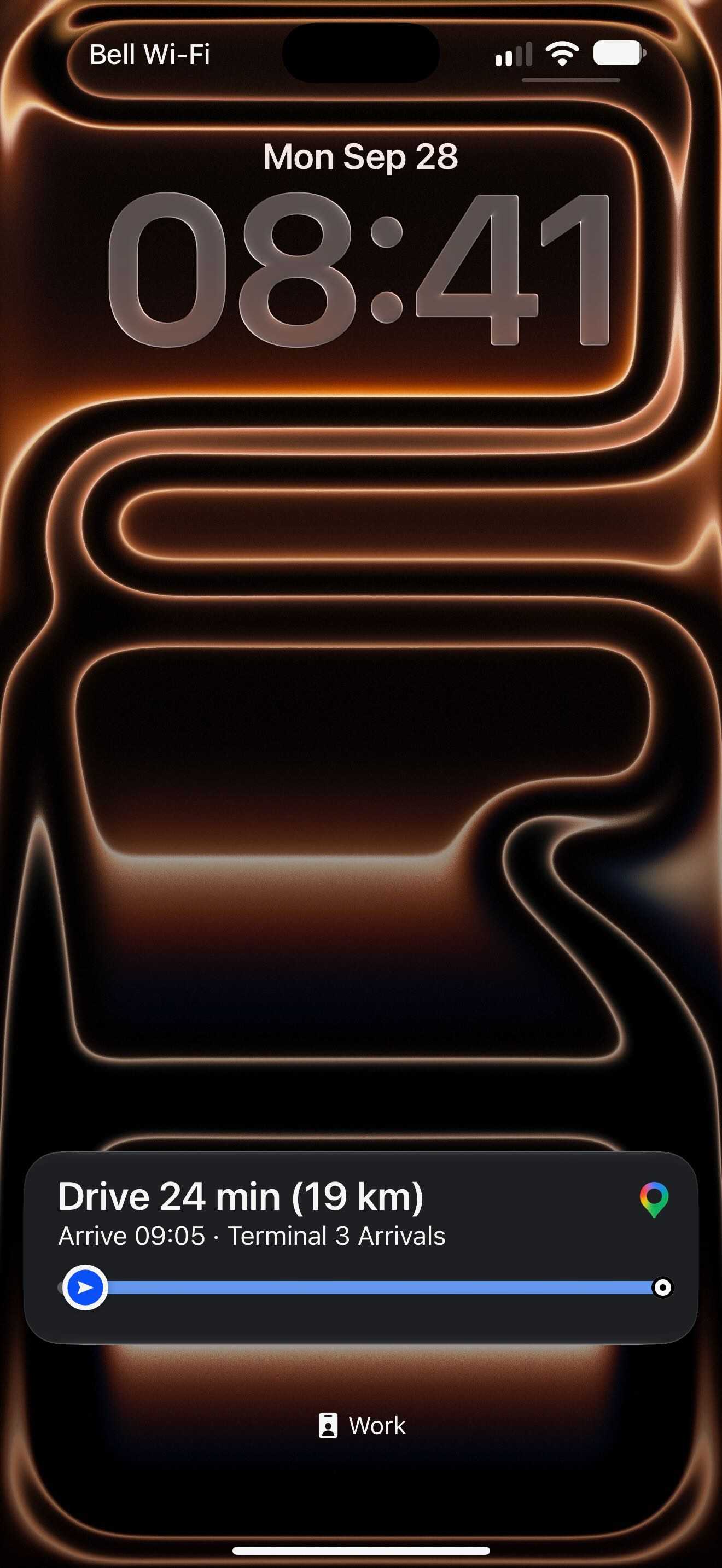
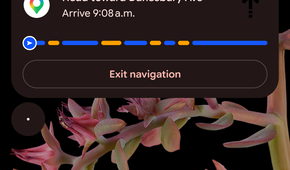
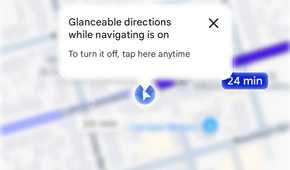
Google introduced a useful feature called Glanceable Directions in Google Maps, which puts the most important navigation details on the lock screen instead of requiring the full app view.
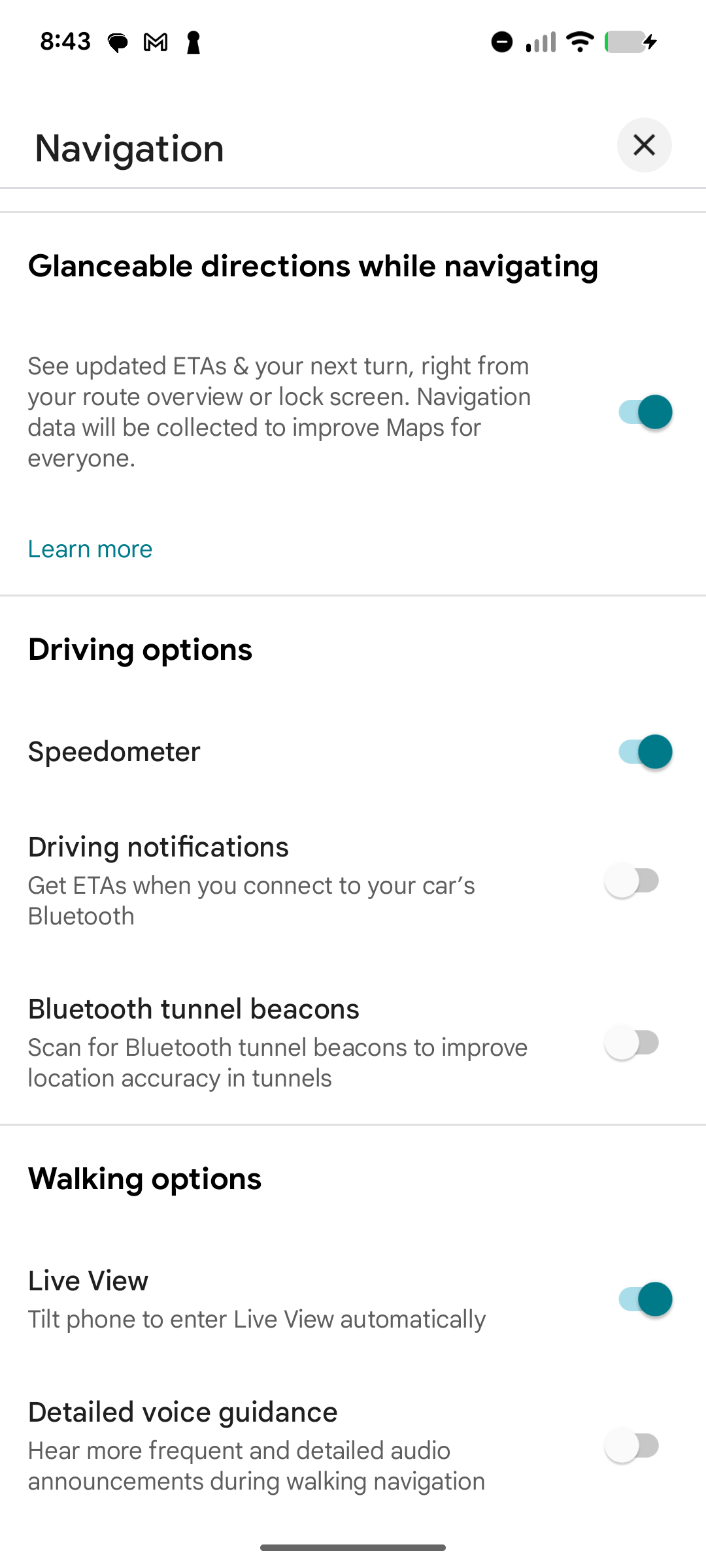
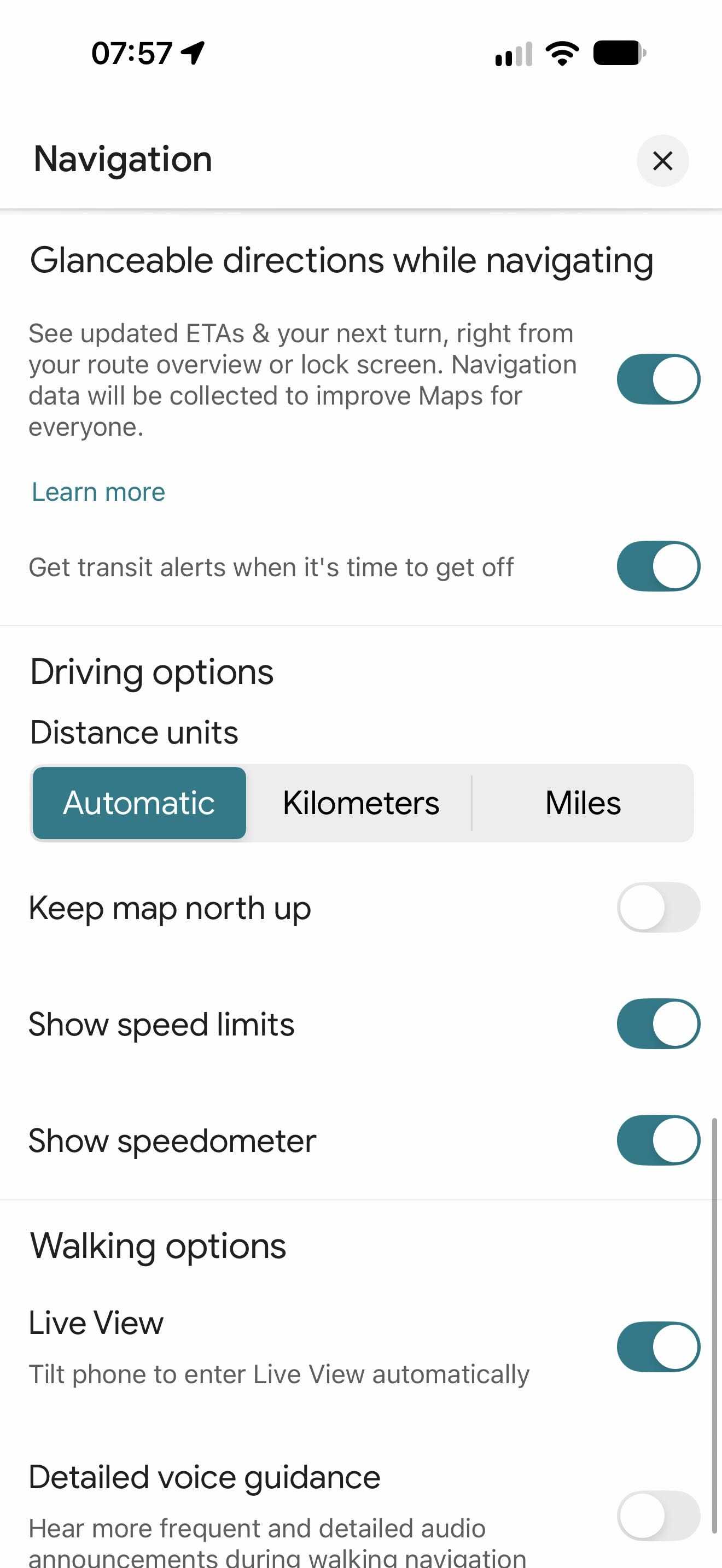
If you have not noticed it, that is understandable, because the setting is tucked away. You can find it by opening Google Maps, tapping your profile picture, choosing Settings, then Navigation, and looking for Glanceable directions while navigating.
Once enabled, start navigation and let the phone lock. The display stays dark or dim until you approach a turn or another route change needs your attention. Then it wakes up just enough to show the next step or alert.
At a glance, you can see your next turn, traffic delays, accidents, or a faster route.
If nothing important is happening, the screen can go back to sleep. If you want to act on an update, tap the lock screen notification to return to the full Google Maps interface.
The feature also works across devices. It is available on Android phones, on iPhone through Apple’s Live Activities, and on phones with always-on displays.


The Pixel advantage
Google's newest phones go a step further
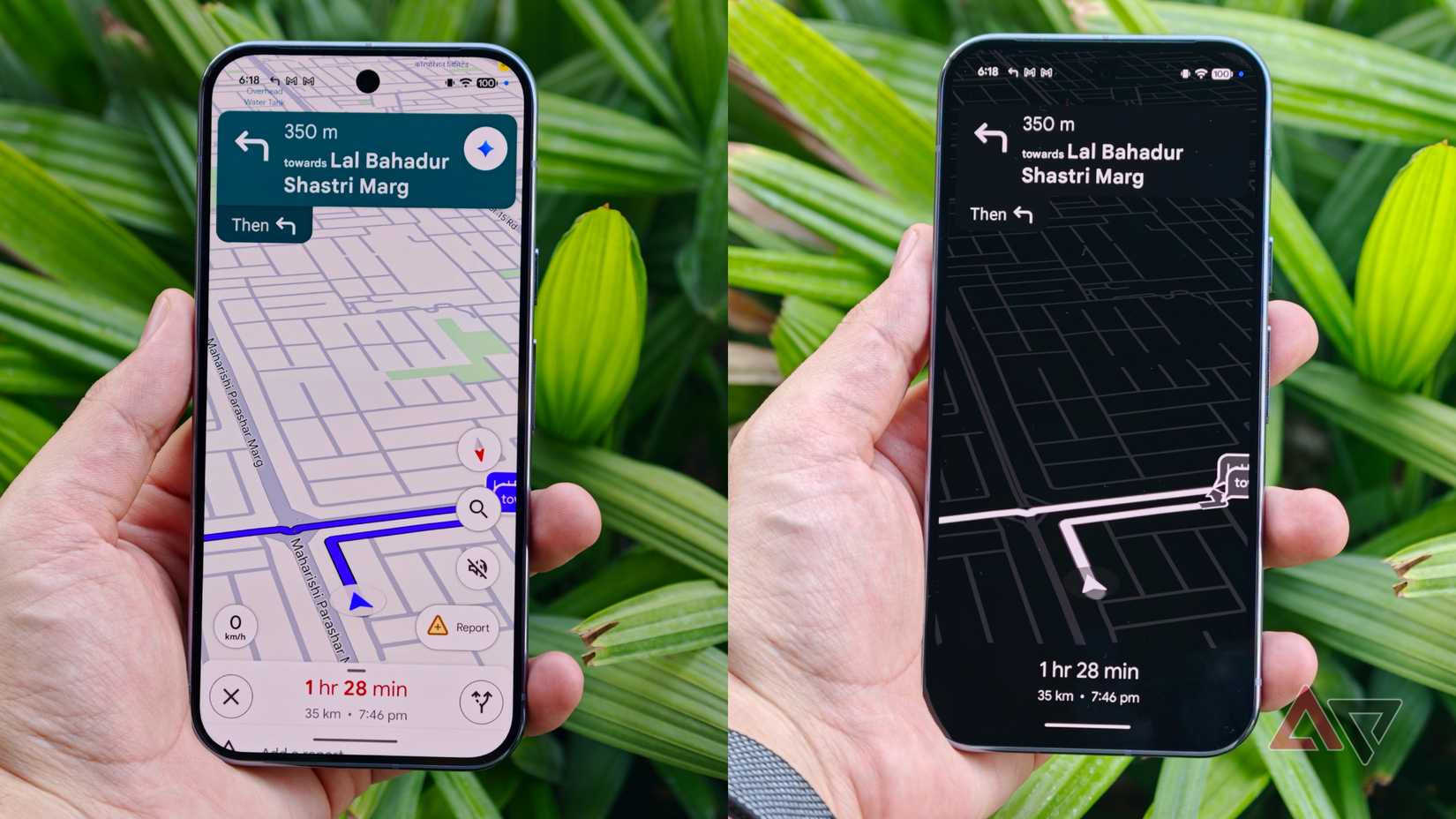
Glanceable directions is the most battery-friendly option, since it keeps the screen powered down for much of the drive. But owners of a Pixel 10 or newer have an even more flexible choice.
The limitation of glanceable directions is that it is not ideal when you are navigating a dense, unfamiliar city and need a live map to see what is coming next.
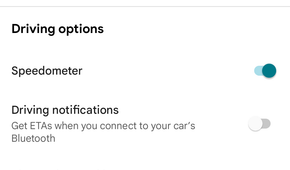
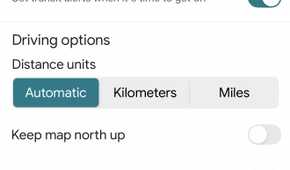
In those situations, Google’s newer Pixels offer a Power saving mode, found in Google Maps under Settings > Navigation > Driving Options.
It combines convenience and efficiency. It may already be enabled on supported Pixels, though there is an extra step that is easy to overlook.
When navigation begins, Google Maps opens in full color and full power. Press the power button, and instead of going to sleep, the app switches to a simpler black-and-white map that remains active on the always-on display.
Because it uses a lower refresh rate and drops color and 3D rendering, battery use drops sharply. Google says battery life can be extended by up to four hours.
In testing, the savings were about 2% to 3% on a standard 30-minute commute compared with leaving a Pixel 10 in dark mode. That may sound modest, but it adds up on longer trips and gives weaker car chargers a better chance to keep up.
It also makes the map easier to digest while driving. The simplified layout removes clutter, and the high-contrast black-and-white view is easier to read quickly.
Although this Power saving mode is officially limited to the Pixel 10 and newer models, a previously reported workaround can enable it on some other Android phones.
The trade-offs
Saving power still means giving up some detail
If your top priority is maximum battery life, glanceable directions can make a big difference, especially on older phones.
There are trade-offs, though. You will still get audio alerts and important lock screen updates, but you will lose the ability to see traffic clusters, points of interest, and icons for things like delays or speed traps.
The Pixel power-saving mode does not restore all of that detail either. It still leaves out many map elements, though it does keep safety-related markers such as construction zones.
In both cases, tapping the screen brings back the full Google Maps interface, but that means an extra step and, depending on your device settings, possibly unlocking the phone.
The good news is that neither option forces you to give up the normal Google Maps experience entirely. Glanceable directions and power-saving mode are simply alternatives when conserving battery matters more than having the full map on display.
A flagship phone may handle a long trip without much trouble, but there is no reason to needlessly drain the battery. It is also useful to arrive with enough charge left for photos and videos.
More from Digilifetrends
Airline Extra Charges and Ways to Steer Clear of Them
Airfares have climbed well beyond what they once were, and prices keep edging higher. In recent years, the extra charges added on top of the ticket itself have become almost a…
1 min read · Updated 2026-10-12A homeowner scores an affordable heat pump water heater, and experts say it can cover summer hot water needs
A homeowner trying to stop relying on oil for warm-weather hot water turned to Reddit to ask whether a heat pump water heater could take over that job in an Energy Kinetics EK1…
3 min read · Updated 2026-10-02